Profile
Your Profile holds the personal details the school has on record for your account. Parents see their own contact details; students additionally see their academic identity, guardian, and the documents the school issues (ID card and certificates).
The numbered screens below walk through this page — each section references them by number.
Opening your profile
Tap the avatar at the top-left of the home screen to open your profile.
Profile details
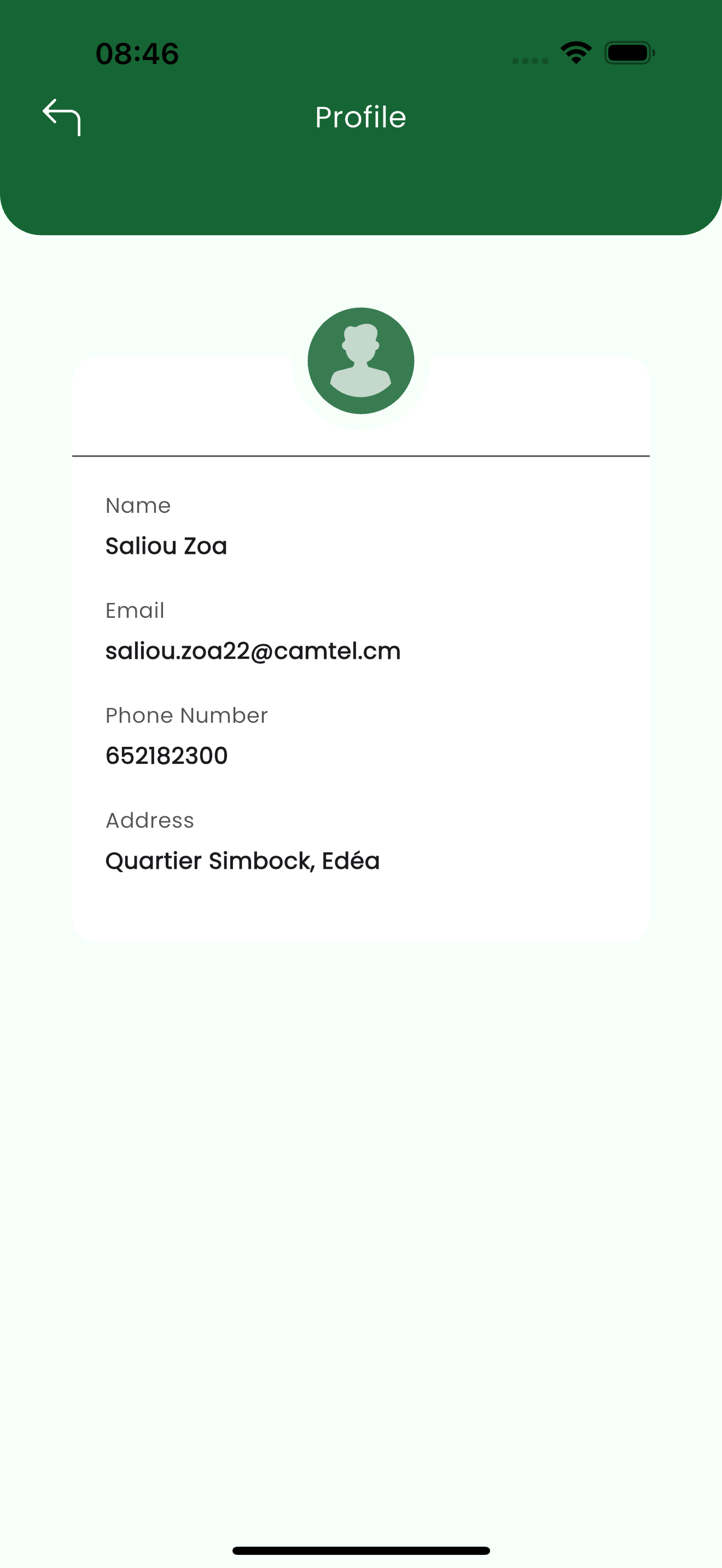
The profile shows your name and the contact details on record. (see 1)
| Field | Type | Required | Description |
|---|---|---|---|
| Name | text | Required | Your full name as registered with the school. |
email | Required | The email address on your account — also used to sign in. | |
| Phone Number | text | Optional | The contact phone number on record. |
| Address | text | Optional | The address held on your record. |
Profile details come from the school's records. If something is wrong, contact the school office to correct it — see Chats & Notices.
Student details, guardian, ID card & certificates
When a student signs in, the Menu adds entries for their guardian, ID card and certificates, and the student's own identity details appear on their ID card.
Guardian details
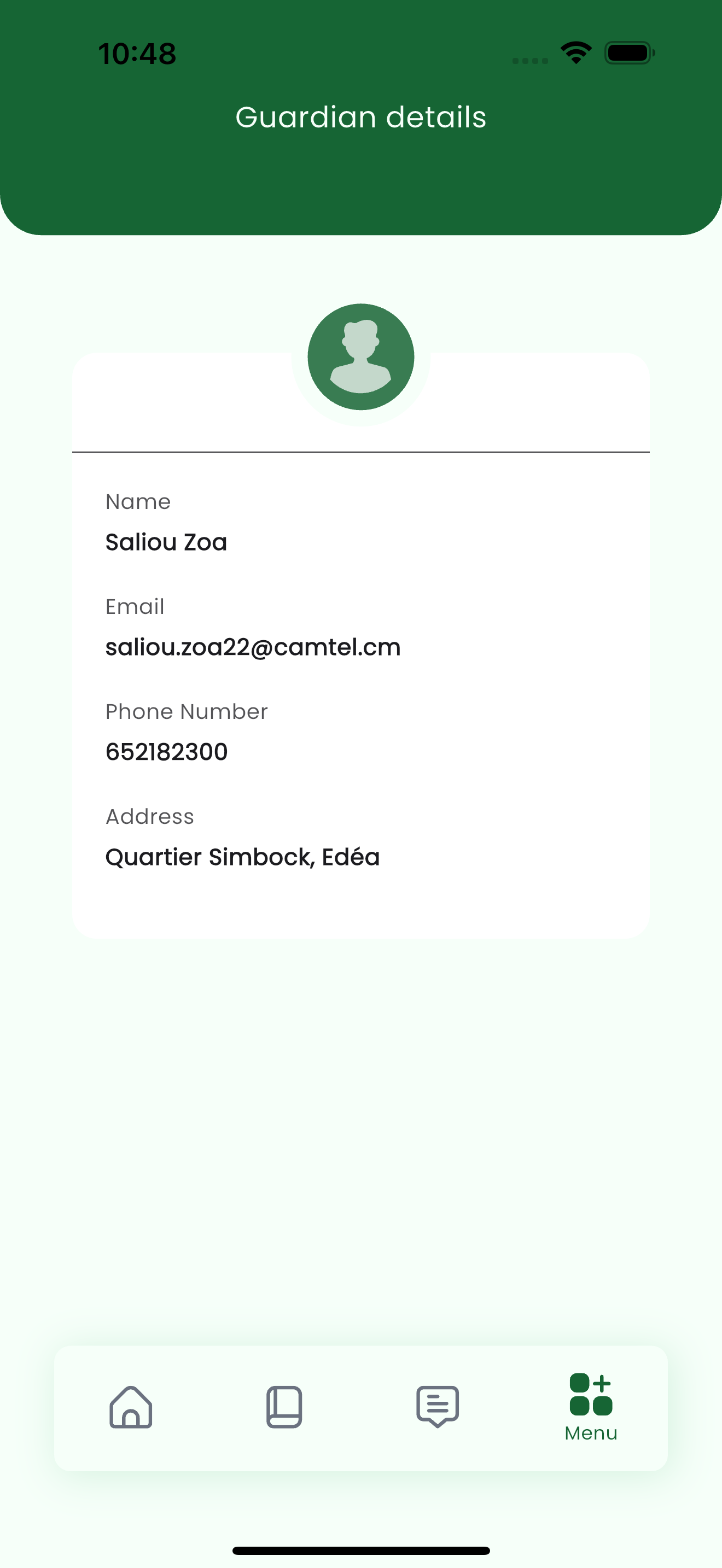
Guardian details shows the parent/guardian linked to the student — name and contact details — so the school knows who to reach. (see 2)
ID card
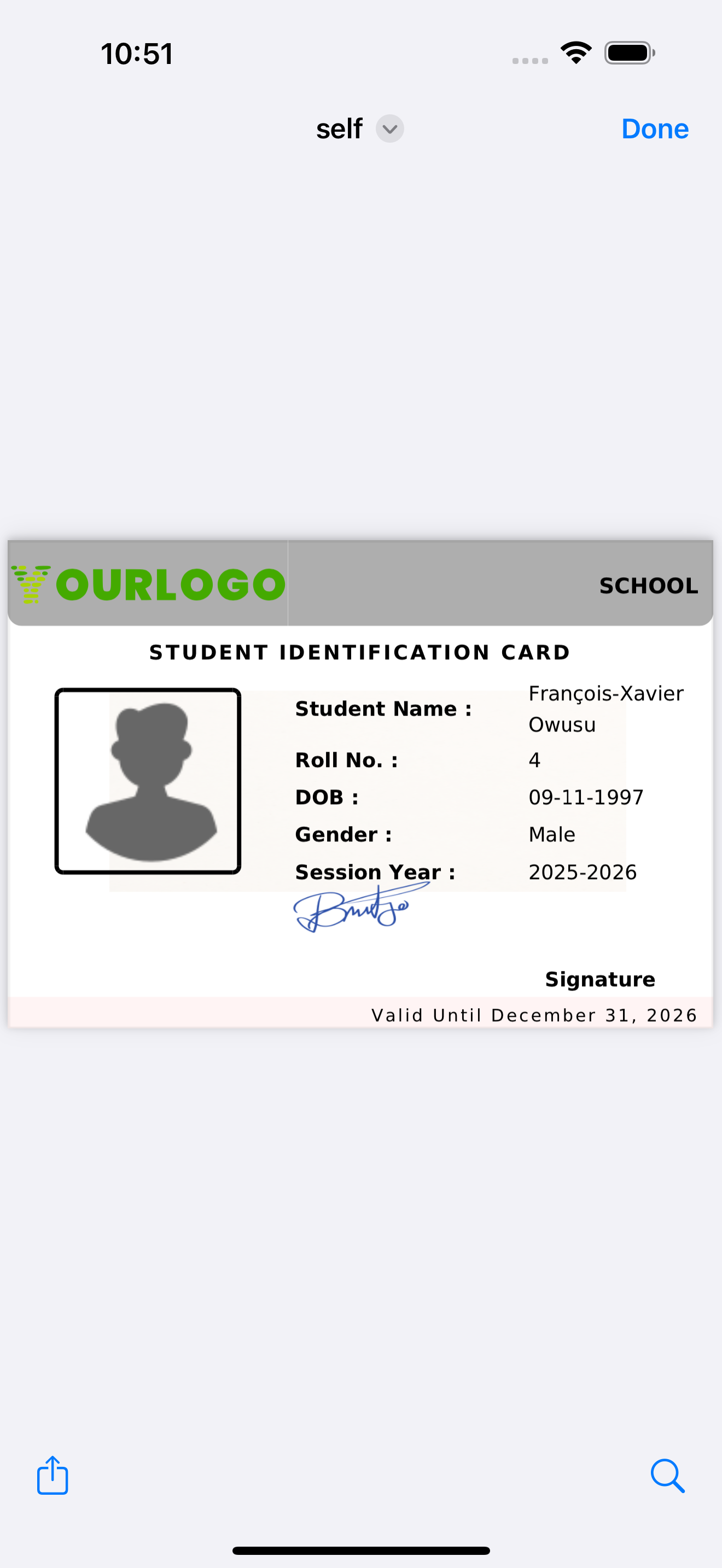
The ID card presents the student's photo and key identity details — name, roll number, date of birth, gender, session year and validity — in a card layout you can view and save. (see 3)
Certificates
Where the school issues them, certificates for the student are available to view and save. If none have been generated, the screen reads No certificates found.
The ID card and certificates appear only when the school has generated them for the student.
Related pages
- Getting Started — sign in and open a child
- Academics — subjects, exams and results
- Chats & Notices — contact the school to update a detail