Transportation & Live Tracking
When a student is enrolled on a school bus route, the Transportation screen shows their transport plan, the assigned bus and crew, live tracking of the bus during a trip, and their pickup attendance. A plan history records each transport plan paid for.
The numbered screens below walk through this page — each section references them by number.
Transportation appears in the student app's menu, and only when the school has enabled the Transportation module and the student has an active transport plan with a vehicle assigned. If the student isn't enrolled, the menu shows a "not assigned" message instead.
Opening transportation
From the student home, open the Menu (bottom bar) and tap Transportation.
The transport dashboard
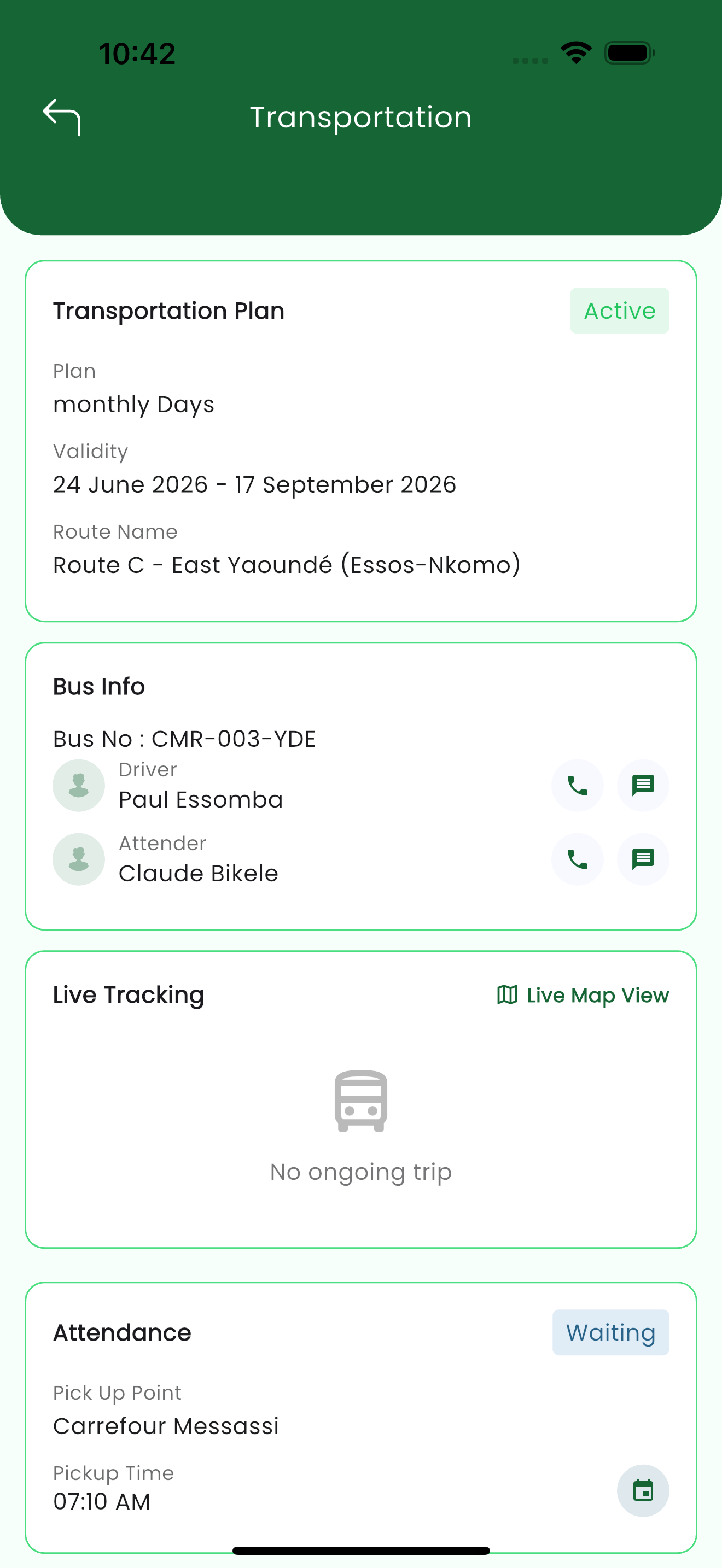
The dashboard summarizes everything about the student's current transport: (see 1)
| Section | What it shows |
|---|---|
| Transportation Plan | Plan status (e.g. Active), the plan type, its validity dates, and the route name. |
| Bus Info | The bus number, the driver and the attender, each with call and message shortcuts. |
| Live Tracking | A live map of the bus while a trip is in progress (see below). |
| Attendance | The student's pickup status, pickup point, and pickup time. |
Live bus tracking
While a trip is running, the Live Tracking section shows the bus's current location, its next stop, and the estimated pickup time, so you can judge when it will reach the pickup point. Tap Live Map View to follow the bus on a full map.
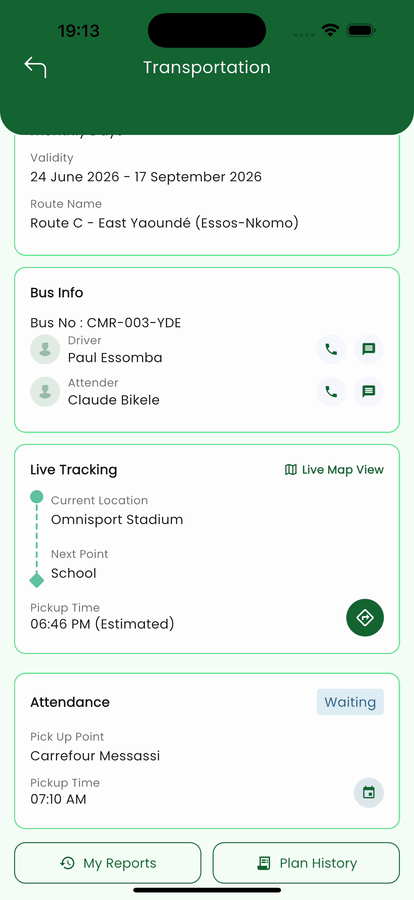
Live tracking updates only while a trip is in progress. Outside trip hours the section shows no ongoing trip and there is no live position to display.
Plan history
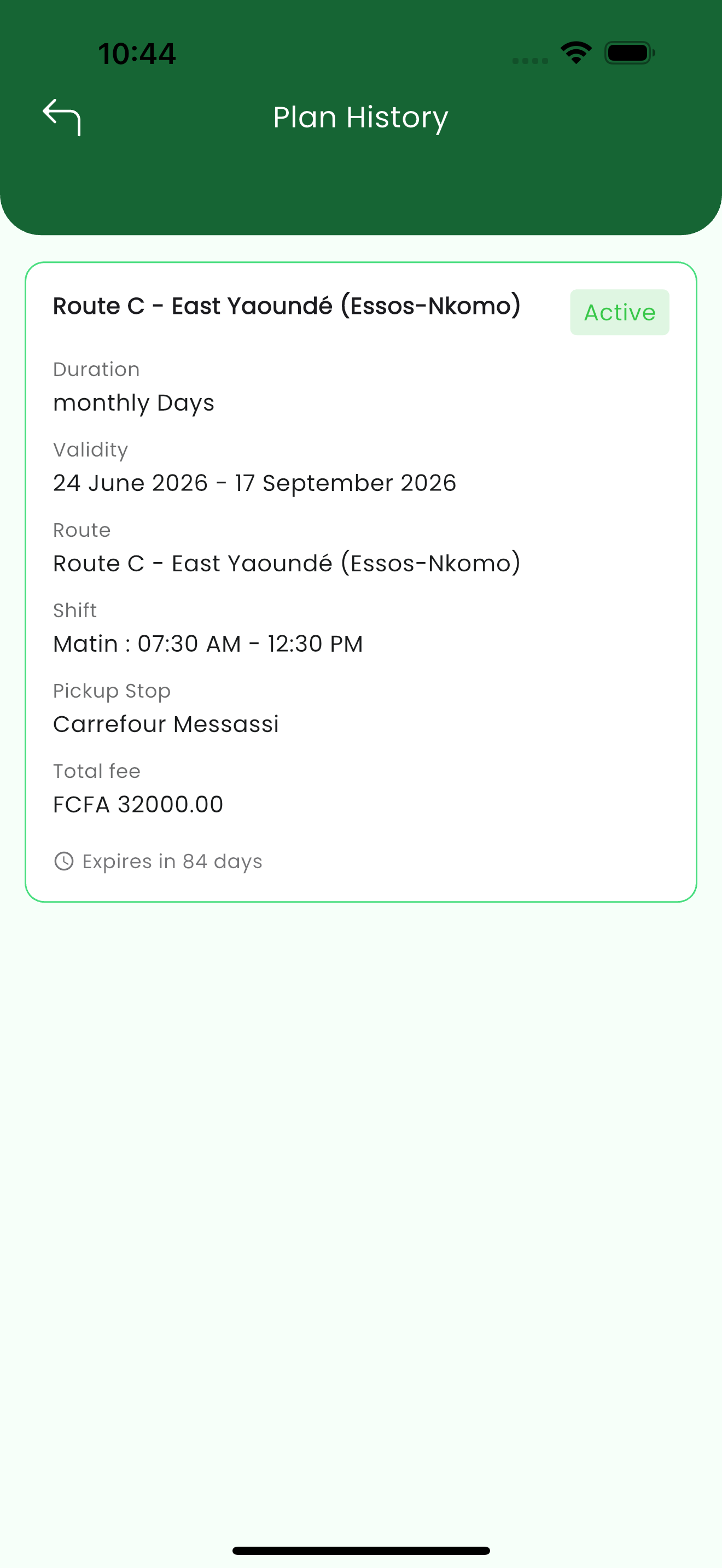
Plan History lists each transport plan, with its route, validity, shift (service hours), pickup stop, total fee, and how long until it expires. (see 2)
Transport plans are paid through the same secure gateways as other fees (Stripe, Razorpay, Flutterwave, Paystack, MTN MoMo, Orange Money). Once a plan is paid and a vehicle is assigned, it appears here as Active. See Fees & Payments for how the gateway flow works.
Trip reports
From the dashboard, My Reports lets the student raise and review reports about a trip (for example a delay or a problem on the route), so the school can follow up.
Related pages
- Getting Started — sign in
- Fees & Payments — how online payment and gateways work
- Chats & Notices — reach the school about transport