Getting Started
The mobile app puts your school in your pocket. One app serves both students and parents — you pick your role when you sign in. Students see their own academics, attendance and fees; parents get a multi-child dashboard that follows every child enrolled at the school from a single login.
The numbered screens below walk through the whole flow — each section references them by number.
Choosing your role
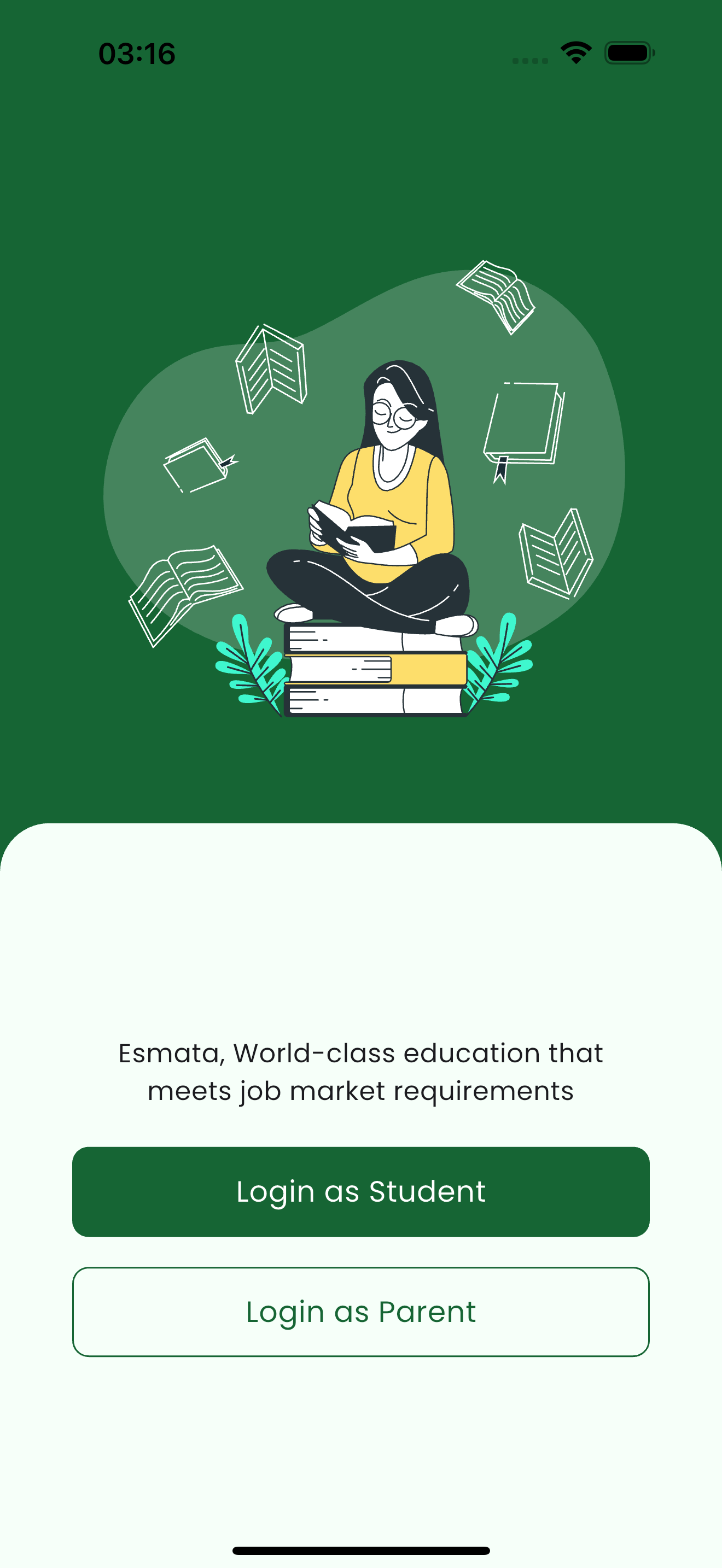
When you open the app for the first time, choose how you want to sign in. Pick Login as Student to see your own records, or Login as Parent to follow your children. (see 1)
Students and parents use the same app but log in with different credentials. The screens you see afterwards depend on the role you chose here.
Signing in
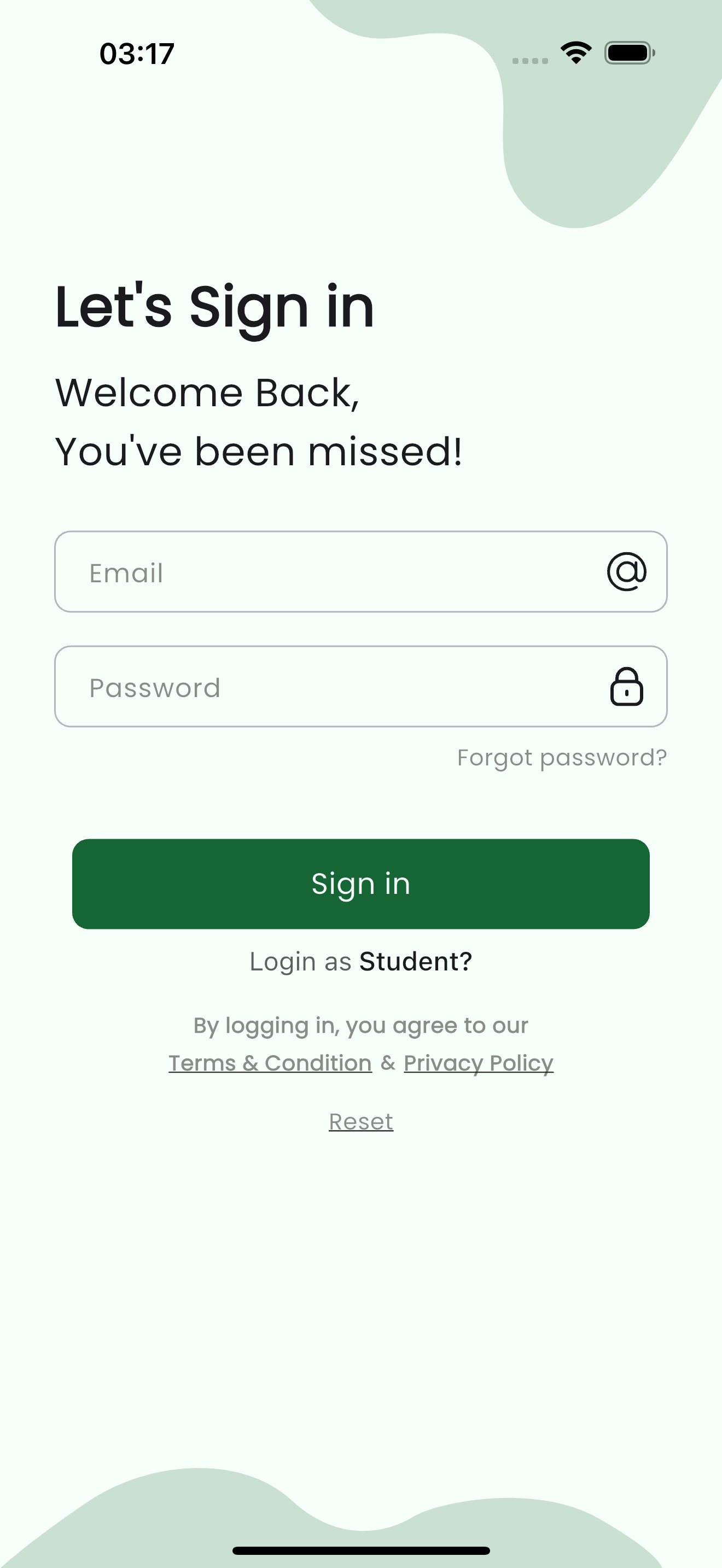
Enter the email and password your school issued. A parent and a student each receive their own credentials — keep them separate. If you forget your password, use Forgot password? or Reset on the sign-in screen, or ask the school office to reset it for you. (see 2)
| Field | Type | Required | Description |
|---|---|---|---|
email | Required | The email address registered with the school for your account. | |
| Password | password | Required | Your account password. Use Forgot password / Reset if you need a new one. |
The link at the bottom of the form (Login as Student? / Login as Parent?) lets you flip to the other role without leaving the screen.
The parent dashboard
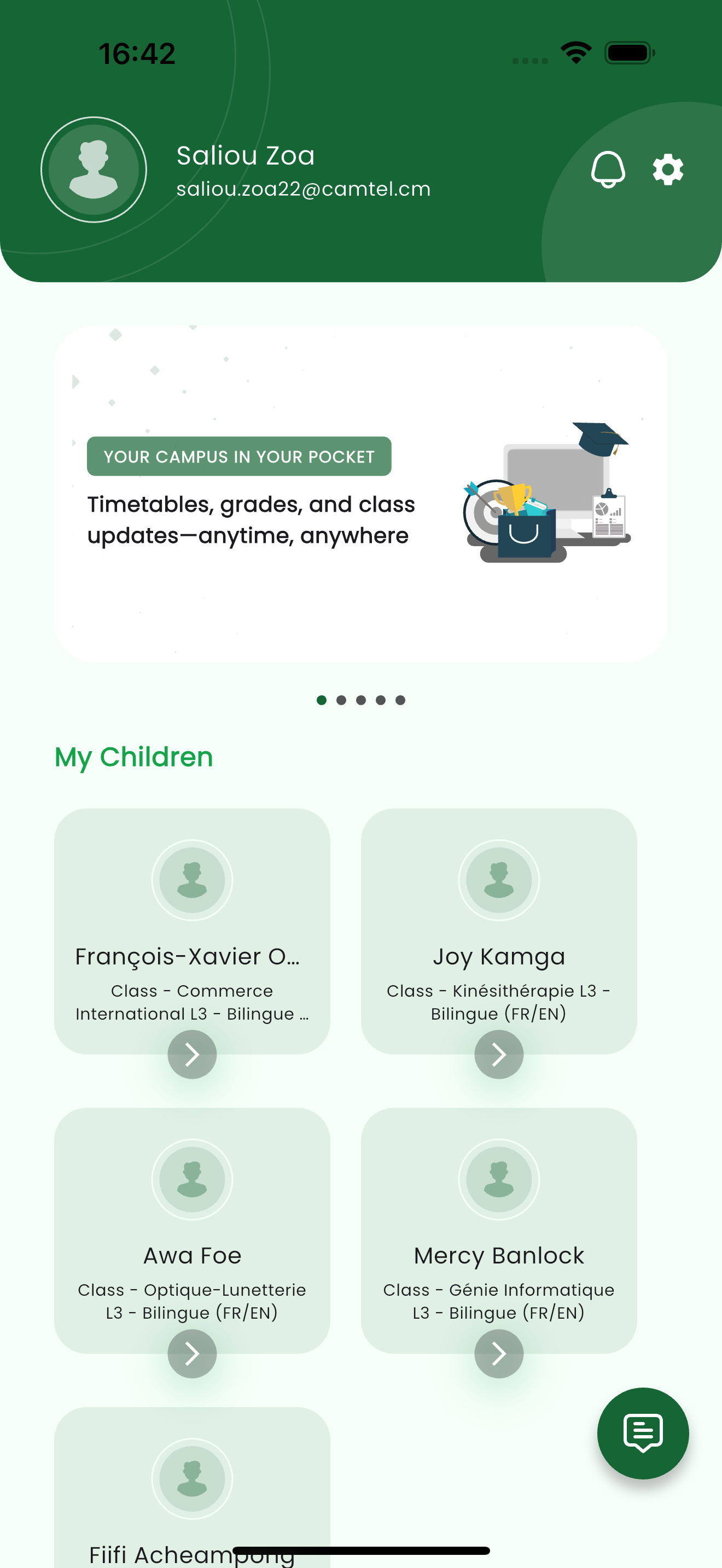
After a parent signs in, the home screen greets you by name and lists My Children — every child linked to your account. Each card shows the child's name and class so you can tell them apart at a glance. (see 3)
A child's home
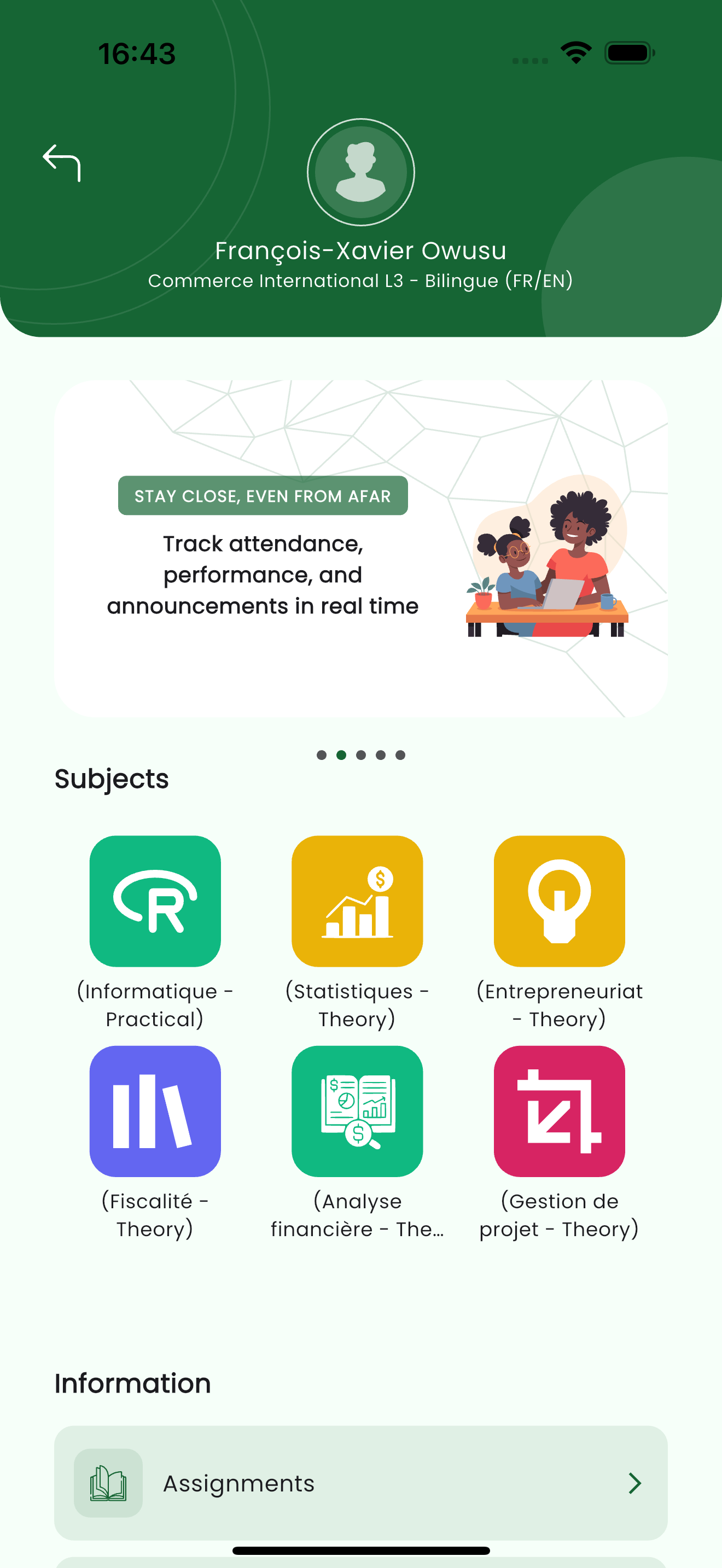
Opening a child shows that child's hub: their name and class at the top, a quick-glance Subjects grid, and an Information list that links to attendance, assignments, exams, results, fees and more for that child. (see 4)
A student who logs in lands directly on this hub for their own account — there is no My Children step, because a student only ever sees their own records.
Related pages
- Academics — subjects, assignments, exams, results and the timetable
- Attendance — the child's presence calendar
- Fees & Payments — fee details, installments and paying online
- Chats & Notices — message teachers and read the notice board