Academics
The Academics area follows a child's school work: the subjects they take, the assignments set for them, the exams they sit, the results they earn, and the weekly timetable. A parent reaches these from a child's home; a student sees the same screens for their own account.
The numbered screens below walk through this page — each section references them by number.
For parents, every screen below applies to the child you opened from My Children. Switch children from the parent dashboard — see Getting Started.
Subjects
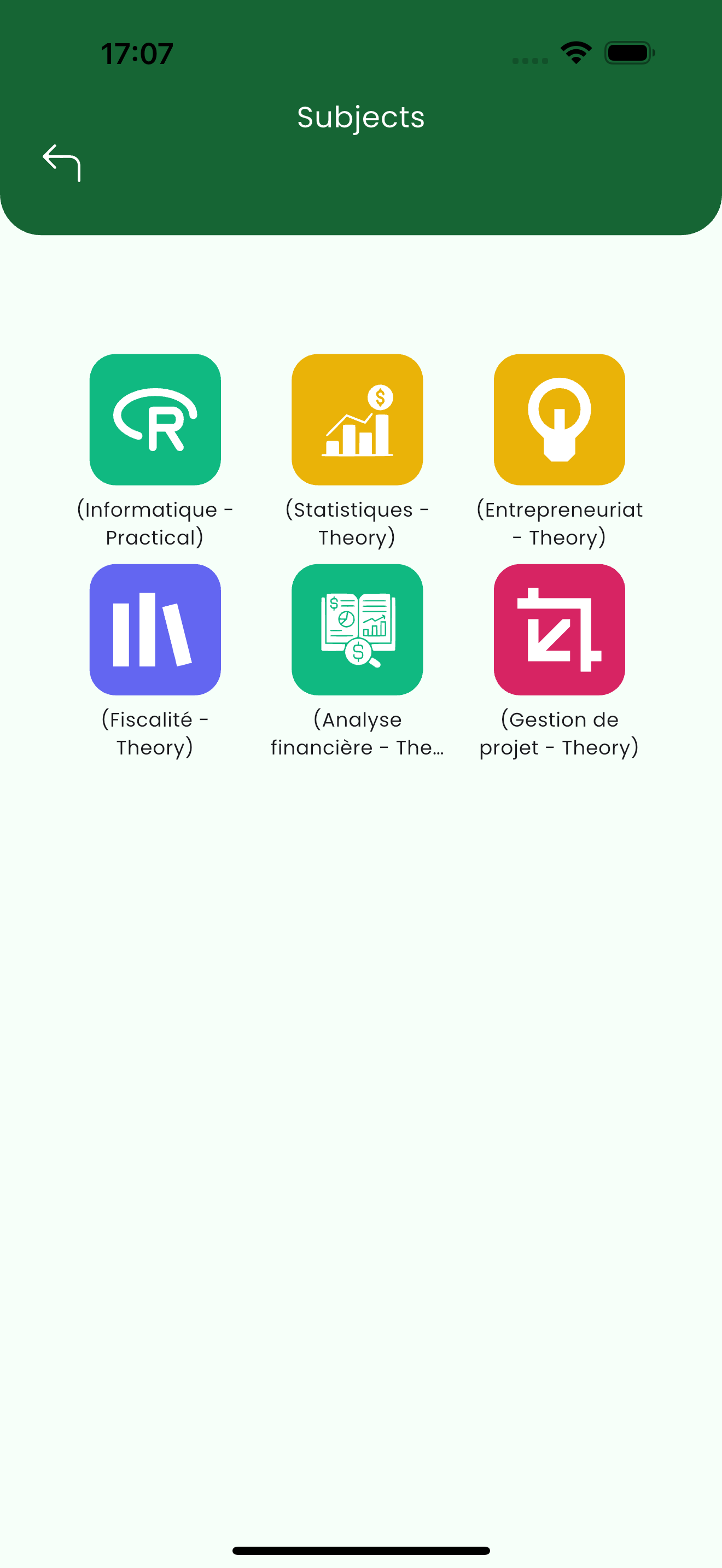
The Subjects screen lists every subject in the child's class, each with its name and whether it is a Theory or Practical subject. (see 1)
Timetable
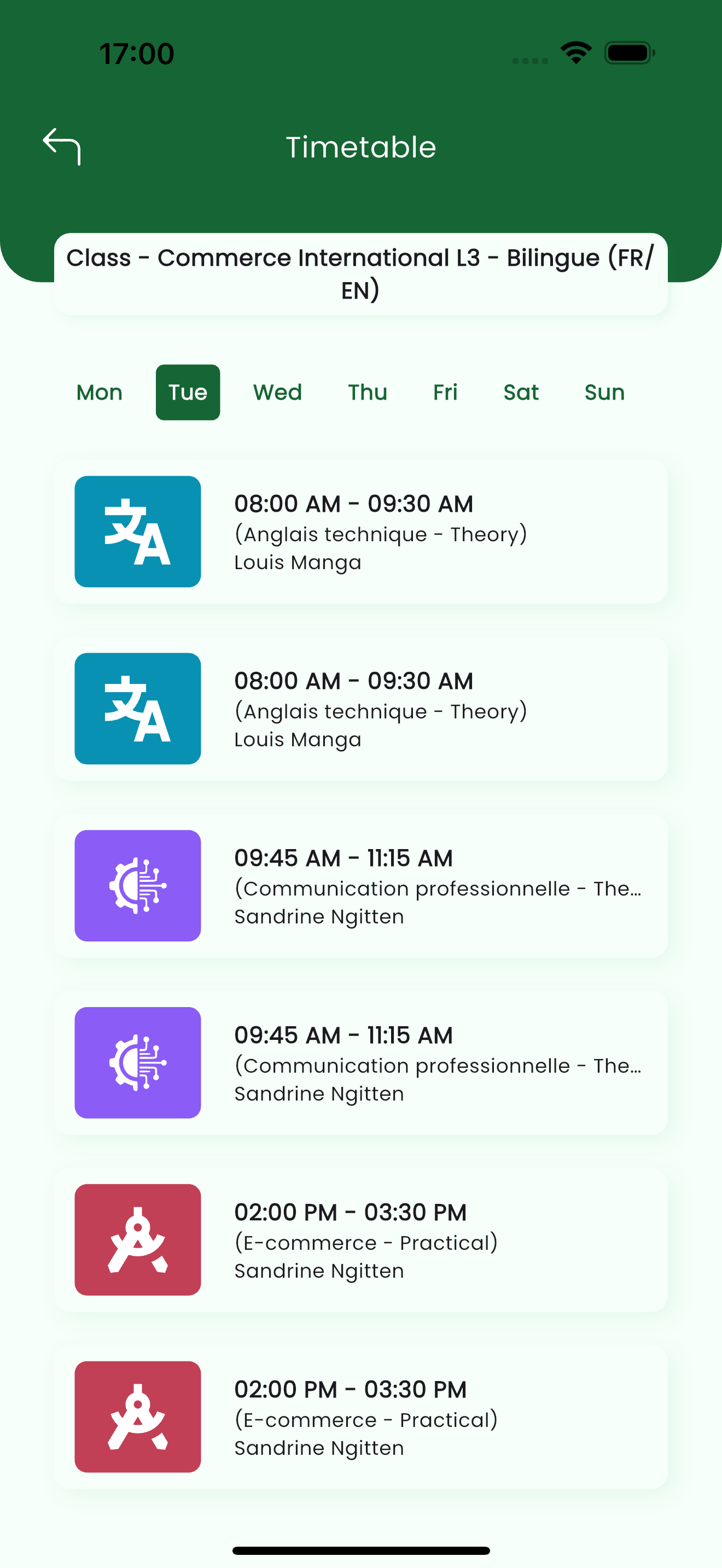
The Timetable shows the weekly class schedule. Pick a weekday across the top to see that day's periods, each with its time slot, subject and teacher. (see 2)
Assignments
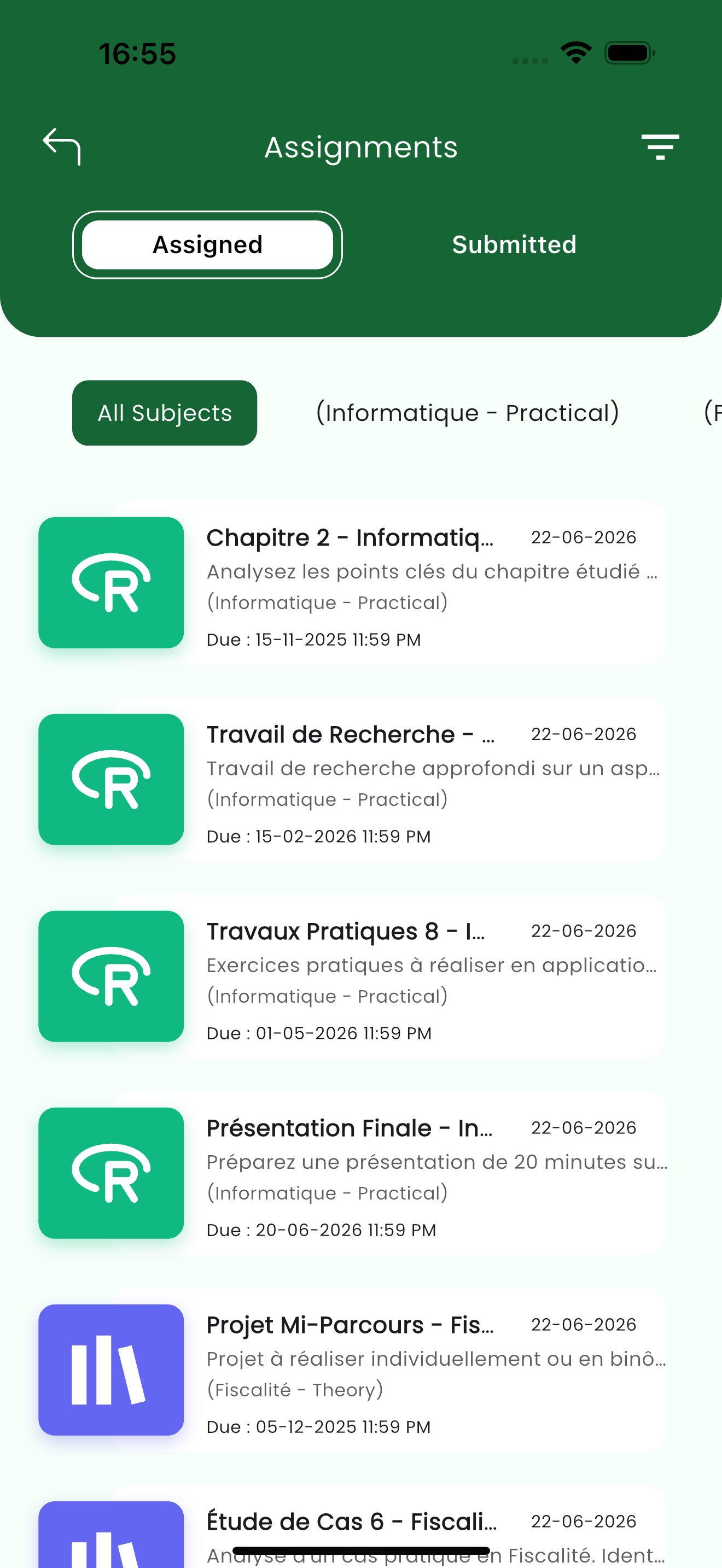
The Assignments screen has two tabs — Assigned and Submitted — and can be filtered by subject. Each card shows the subject, the assignment title and description, the set date and the due date so nothing slips past. (see 3)
| Control | Purpose |
|---|---|
| Assigned / Submitted | Switch between open assignments and ones already turned in. |
| Subject filter | Narrow the list to one subject, or All Subjects. |
| Due date | Each card's deadline — submit before it passes. |
A logged-in student can open an assignment and upload their work from the Assigned tab. Parents see the same list to keep track of what is due and what has been submitted.
Exams
The Exams screen separates Offline exams (sat in class) from Online exams (taken in the app), and can be filtered by subject.
Offline exams
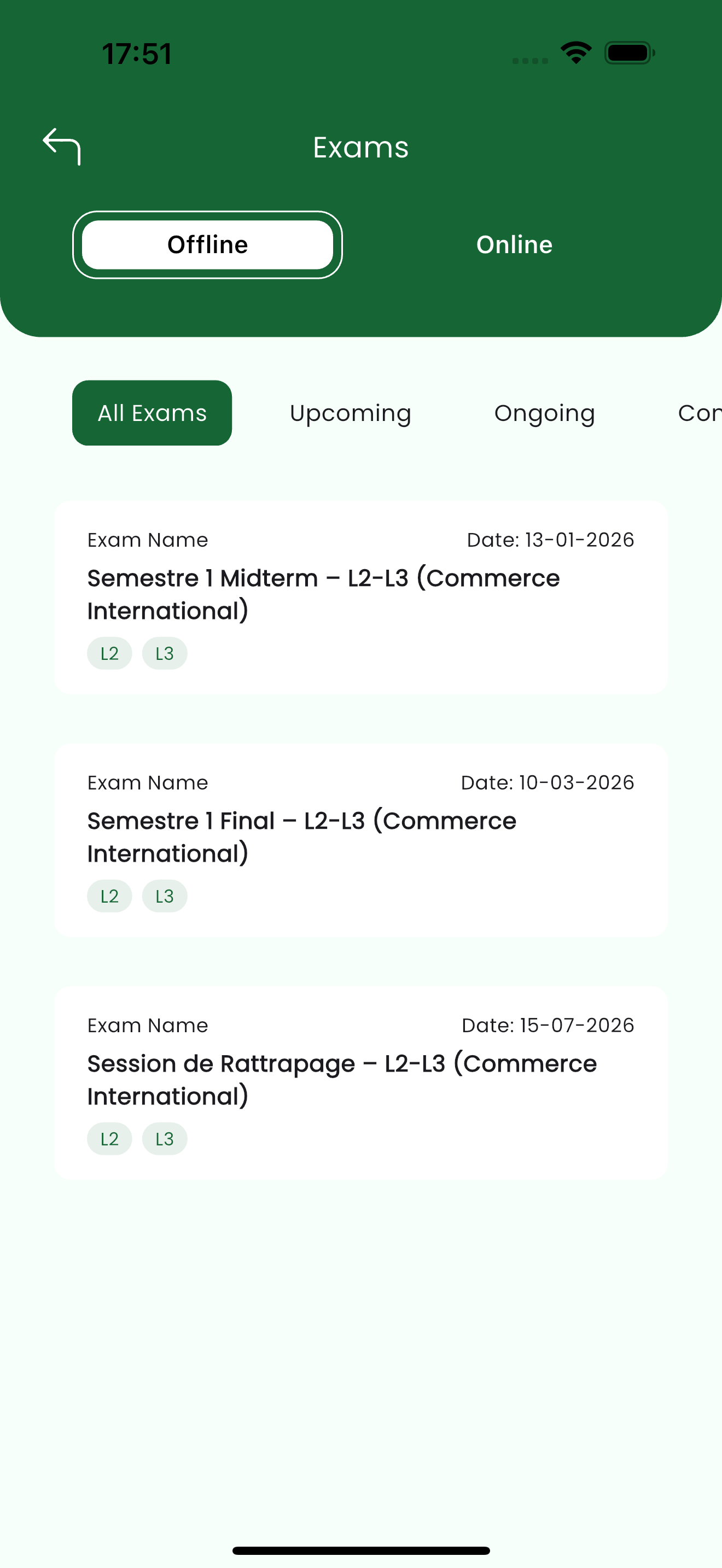
The Offline tab lists scheduled in-class exams with their name and date. Use the Upcoming, Ongoing and Completed filters to focus on a stage, and the class-level tags (e.g. L2, L3) identify who the exam is for. (see 4)
Online exams
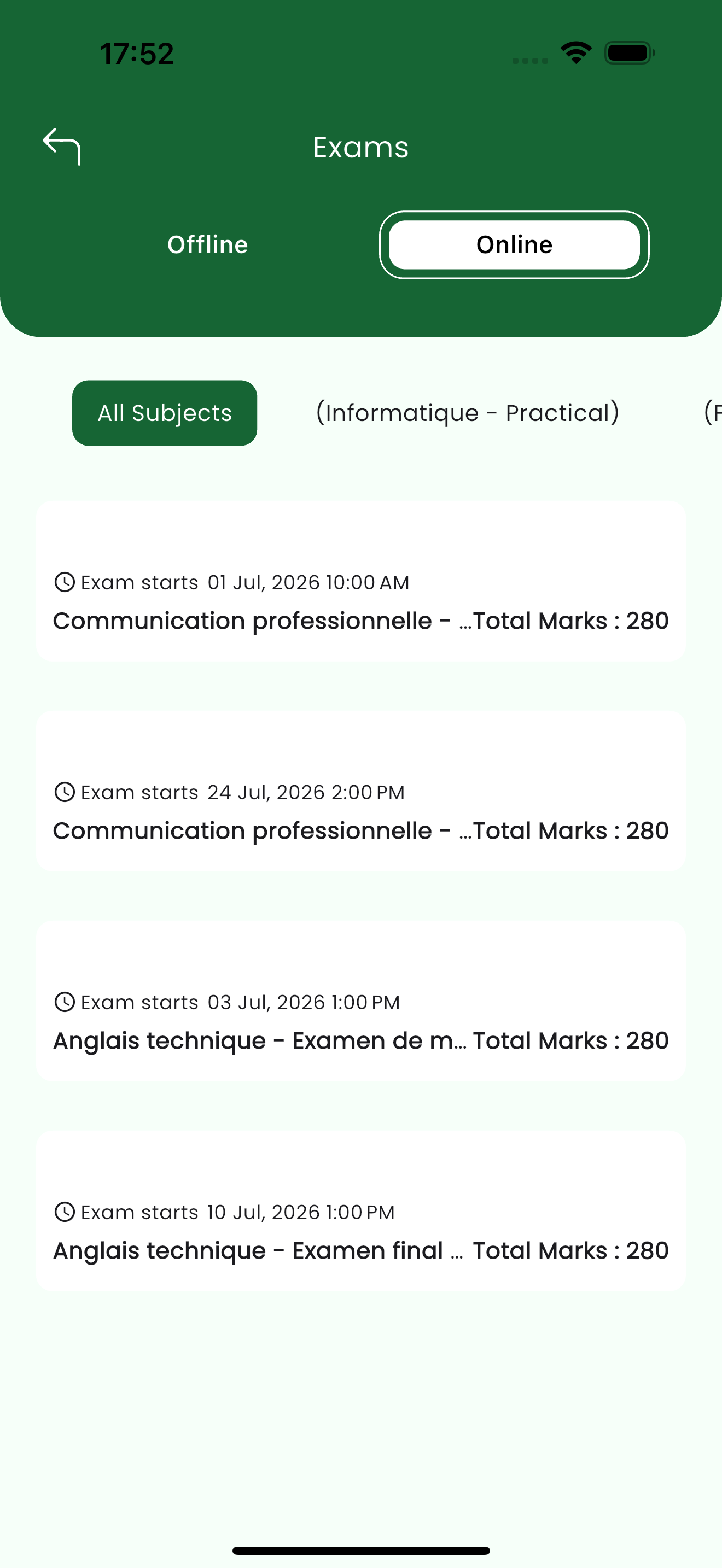
The Online tab lists exams taken inside the app, each with its start time and total marks. A student opens an online exam at its scheduled time to attempt it; parents see the schedule. (see 5)
To attempt an online exam, a student accepts the exam rules, enters the exam key, then answers each question against a countdown timer. A question navigator tracks answered and unanswered questions, and Submit finishes the attempt and shows the score straight away.
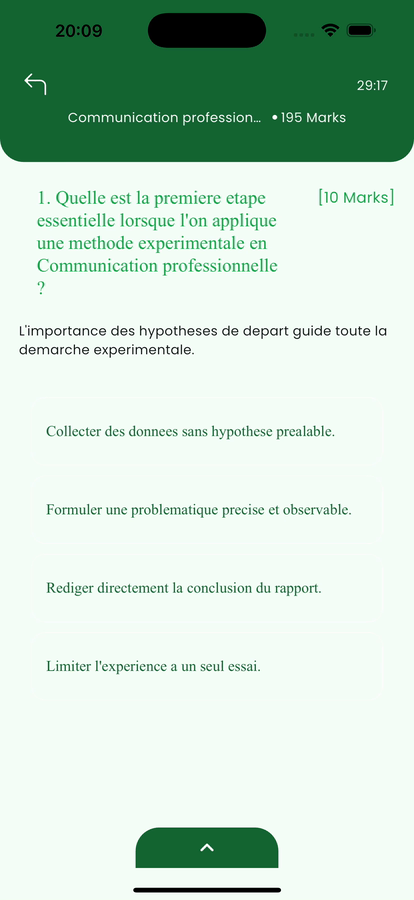
Only a logged-in student can attempt an online exam. A parent sees the exam schedule and, once the student has finished, the result.
Results
The Results screen mirrors the exam split — Offline and Online — so marks land next to the exam they came from.
Offline results
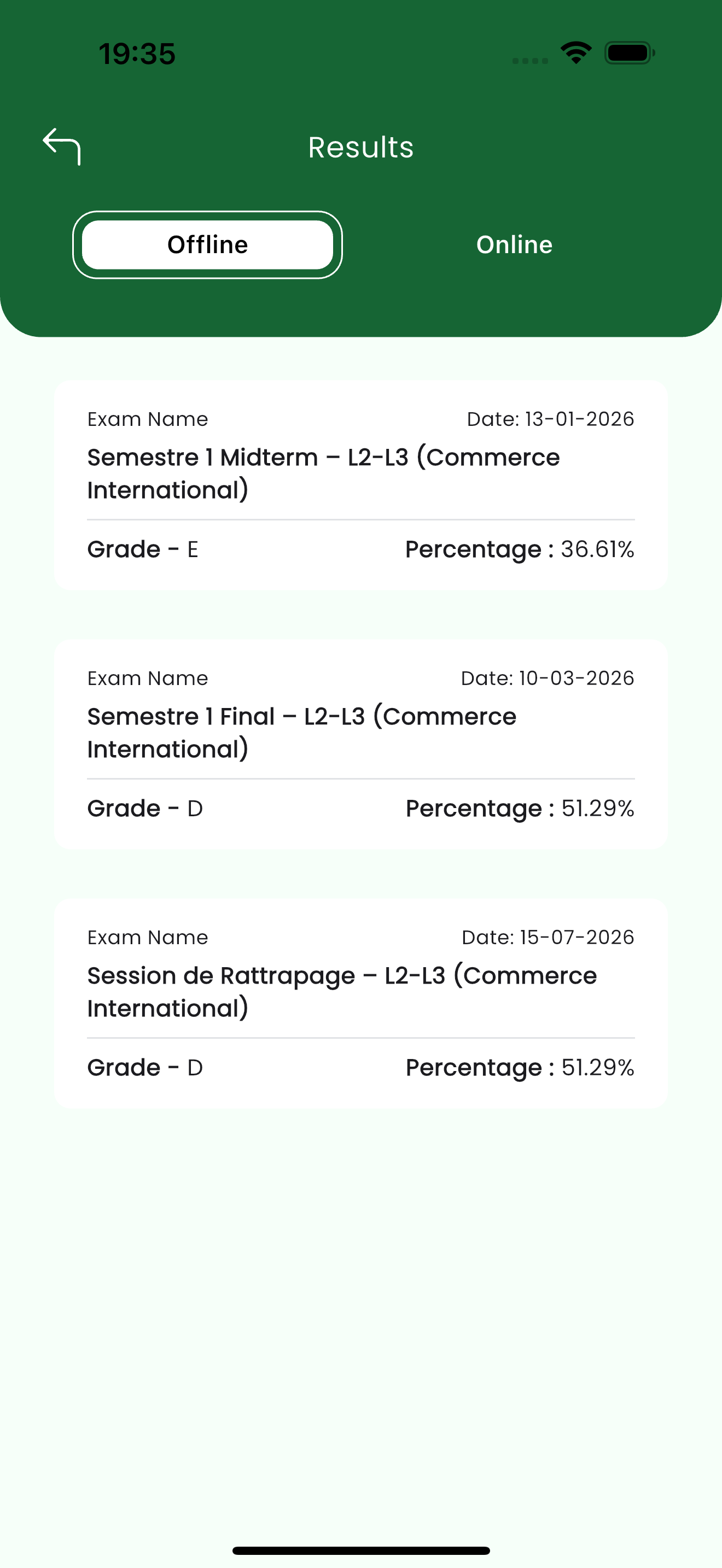
The Offline tab shows results for in-class exams: the exam name, date, the grade awarded and the percentage scored. (see 6)
Online results
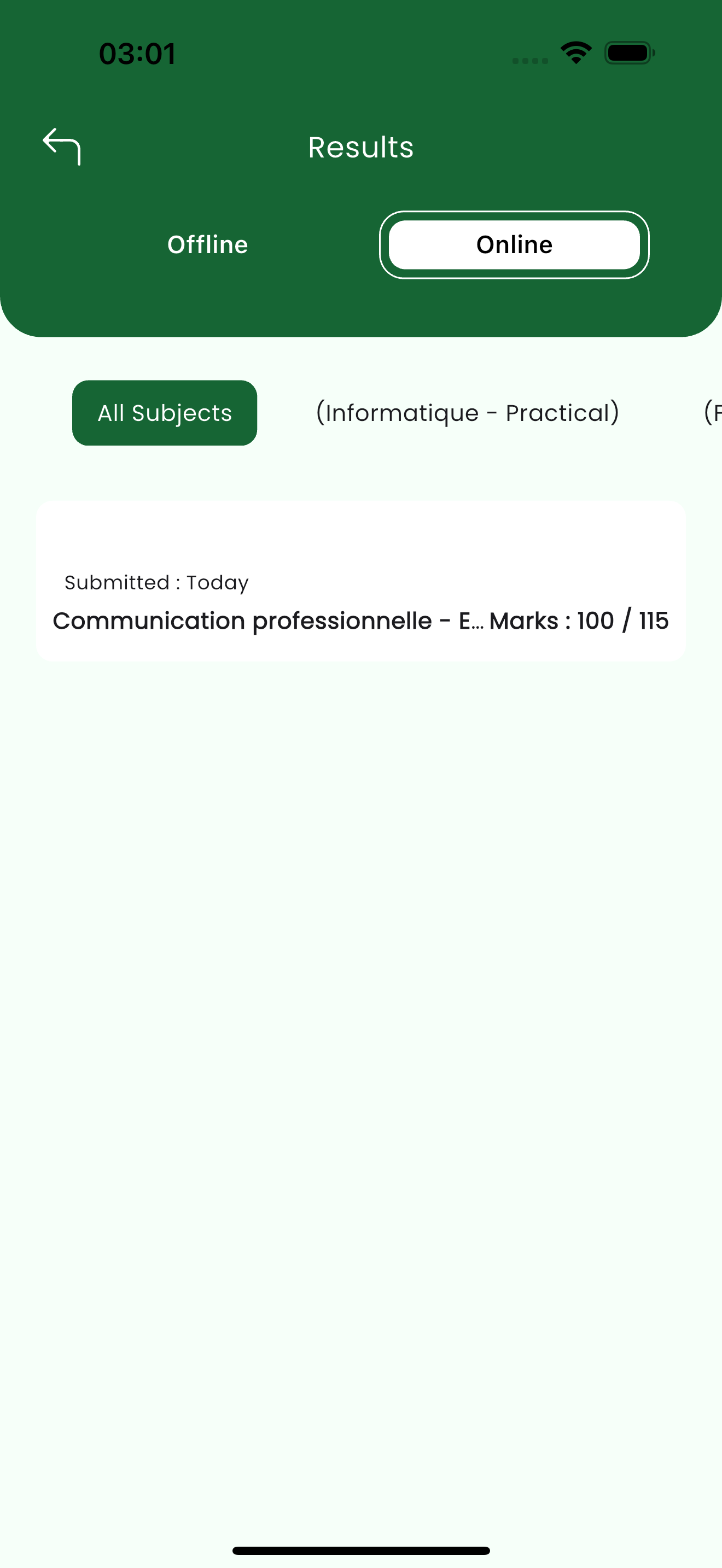
The Online tab shows results for app-based exams, with the marks scored out of the exam total. (see 7)
Related pages
- Getting Started — sign in and open a child
- Attendance — the child's presence calendar
- Chats & Notices — message a teacher about an assignment or result
- Fees & Payments — fee details and paying online