Student Portal Overview
The Student Web Portal is the browser-based companion to the Stunov platform. Students sign in with their own credentials to follow their academics — subjects, assignments, exams, results, timetable, attendance — and to stay connected with the school through chats, the noticeboard, and notifications. The portal is fully branded per school (logo, colors, name) and supports light and dark themes, multiple languages, and academic session/semester switching.
The portal is served by the school's own Stunov instance at /student on the school address
(for example your-school.stunov.com/student). It is the same login surface students use on any
device with a modern web browser.
Signing in
Students log in from the portal's Log In screen. The page shows the school's logo and branding.
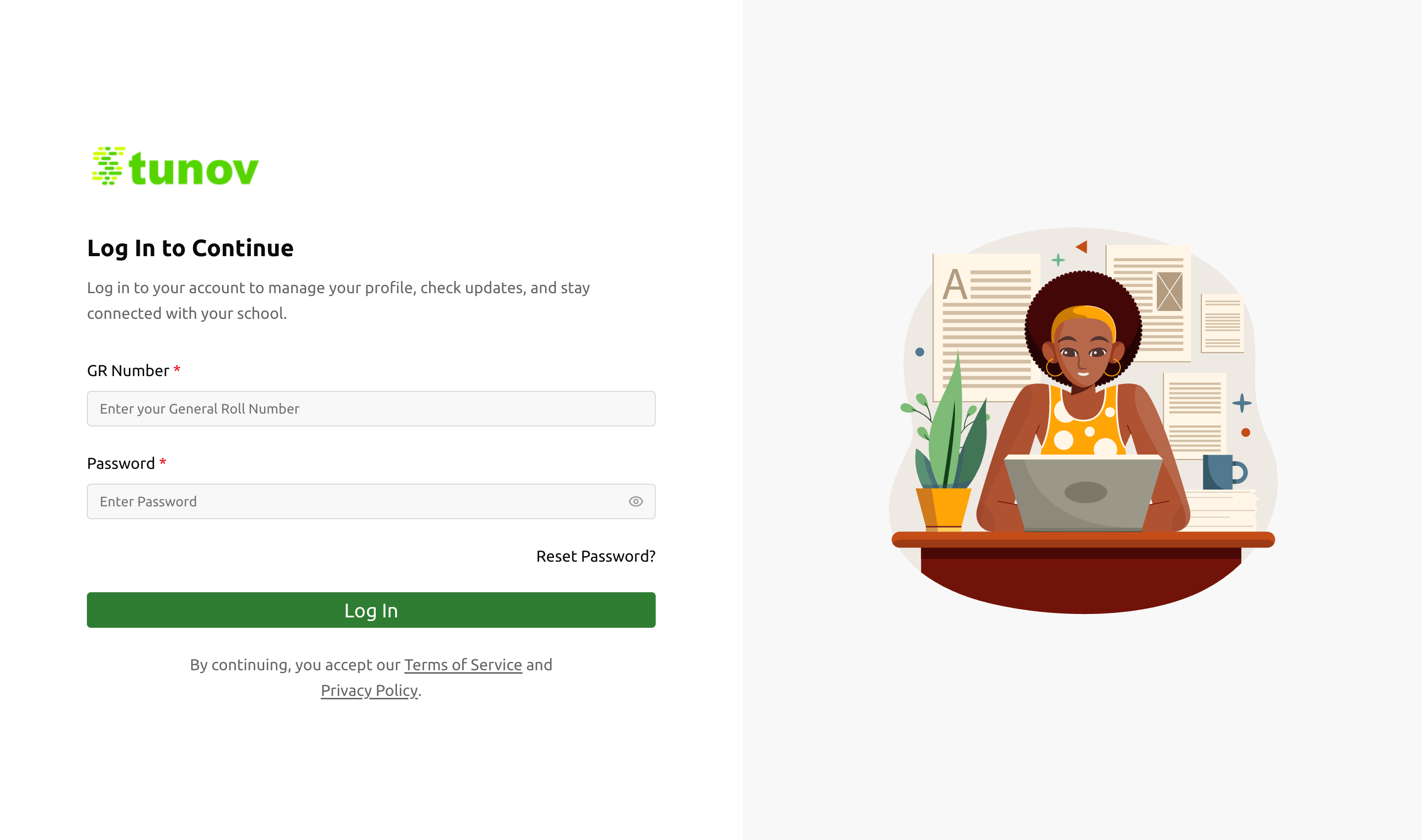
| Field | Type | Required | Description |
|---|---|---|---|
| GR Number | Text | Required | Your unique student login identifier, issued by the school. |
| Password | Password | Required | Your account password. Can be recovered via "Reset Password?". |
GR Numbers and initial passwords are created by the school. If you cannot sign in, contact your school administrator — they can reset your credentials from the web admin panel.
The dashboard
After signing in, the Dashboard is your home base. It combines a welcome banner, your attendance at a glance, and the latest notices from the school.
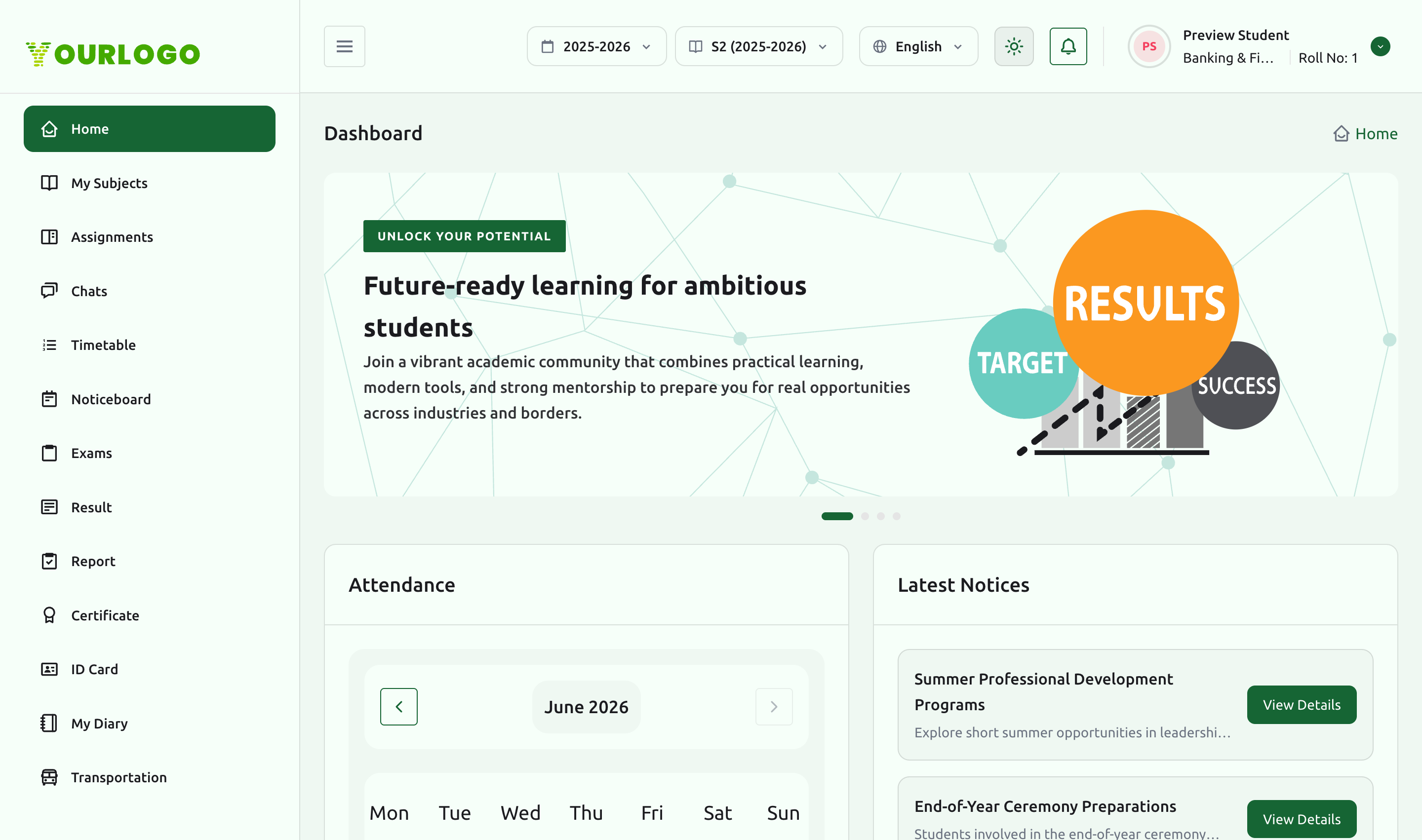
Layout at a glance
| Area | What it contains |
|---|---|
| Sidebar (left) | Navigation to every portal section. Sections only appear when the matching feature is enabled for your school. The sidebar collapses to icons on smaller screens. |
| Top bar | Academic session year and semester switchers, language selector, light/dark theme toggle, notifications bell, and your profile menu (name, class, roll number). |
| Banner | A rotating slider of school highlights and announcements. |
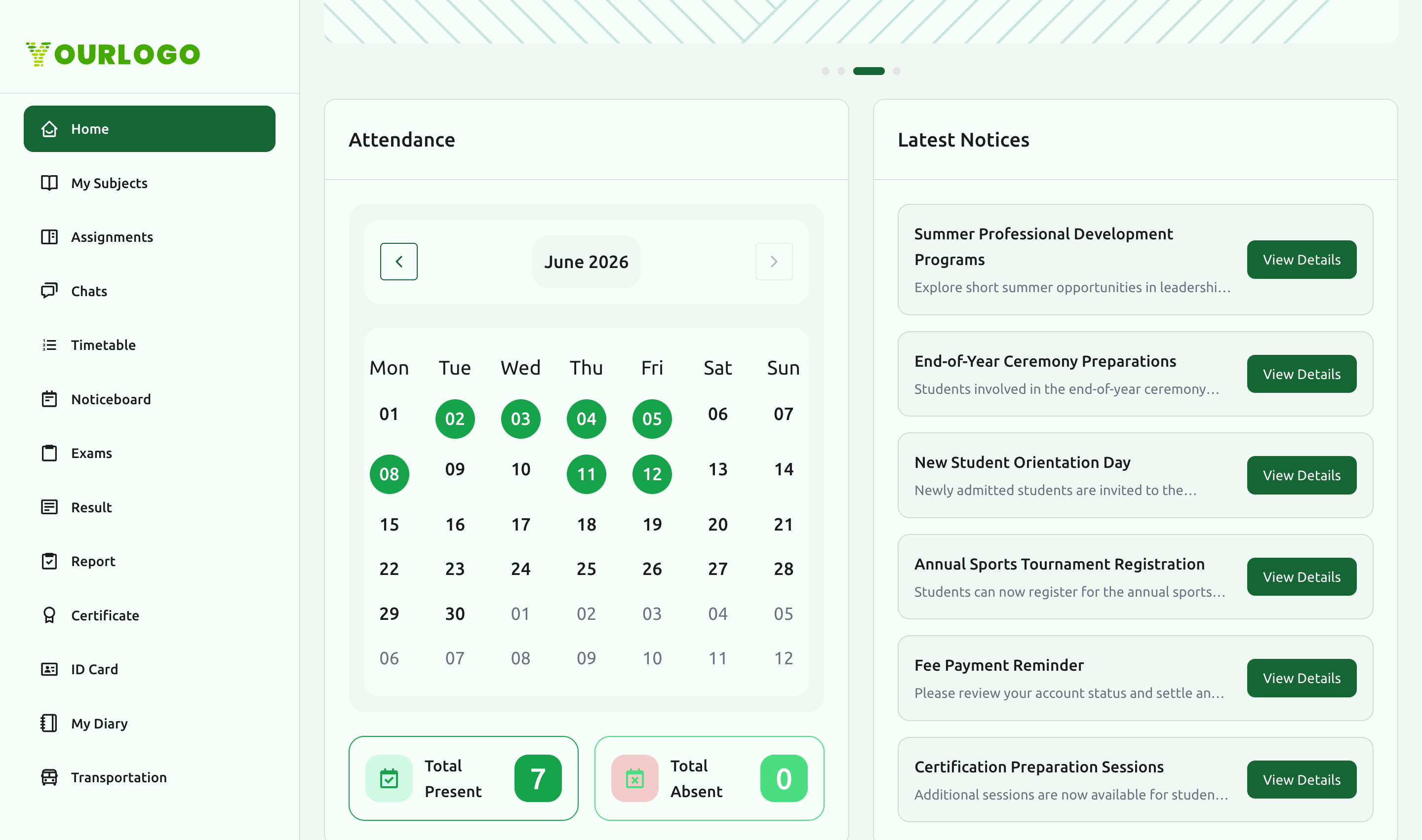
| Attendance | A month calendar of your attendance with Total Present and Total Absent counts. |
| Latest Notices | The most recent noticeboard posts, each with a View Details action. |
Navigation sidebar
The sidebar is feature-aware: each entry is shown only when the school has enabled the corresponding module. Typical entries include Home, My Subjects, Assignments, Chats, Timetable, Noticeboard, Exams, Result, Report, Certificate, ID Card, My Diary, Transportation, Teachers, Holiday, Gallery, Guardian Details, and Notifications, plus the static Privacy Policy, Terms & Condition, About Us, and Contact Us pages.
Session year & semester
The top bar shows the active academic session year (e.g. 2025-2026) and semester
(e.g. S2). Switching either re-scopes the data you see across the portal — attendance, exams,
results, gallery, and more reflect the selected session and semester.
Session and semester switching spans the whole platform (web portal and apps). It is documented in detail on the Viewing & Session Context page.
Attendance widget
The dashboard Attendance calendar marks your present/absent days for the selected month and totals them below. It is a quick summary; the full breakdown lives on the Attendance & Timetable page.
Latest notices
The Latest Notices panel surfaces recent posts from the school noticeboard. Click View Details on any notice to read it in full, or open the Chats & Notices page for the complete noticeboard.
Personalization
| Control | Location | Effect |
|---|---|---|
| Theme | Top bar (sun/moon icon) | Switch between light and dark appearance. Your choice is remembered. |
| Language | Top bar (language selector) | Display the portal in your preferred language. |
| Session / Semester | Top bar (dropdowns) | Re-scope all data to the chosen academic period. |
| Profile menu | Top bar (avatar) | View your profile and sign out. |
Related pages
- Subjects & Lessons — your courses, chapters, topics, and materials
- Attendance & Timetable — full attendance, weekly timetable, and holidays
- Chats & Notices — messaging, noticeboard, and notifications
- Profile & Certificates — your profile, ID card, certificates, and more
- Viewing & Session Context — how the year/semester switcher works everywhere