Storage Overview
The Storage Overview is the home of the Storage Management area. It shows how much of your storage quota is in use and where it's going, so you can spot problems before you run out of space. Every storage page shares a header strip with the same key figures: Storage Used (percentage with a progress bar), Used / Limit in readable units, total Files, and Trashed files.
Feature Requirement
Storage Management requires the Storage Management feature in your subscription plan. If it isn't enabled, the page prompts you to purchase it.
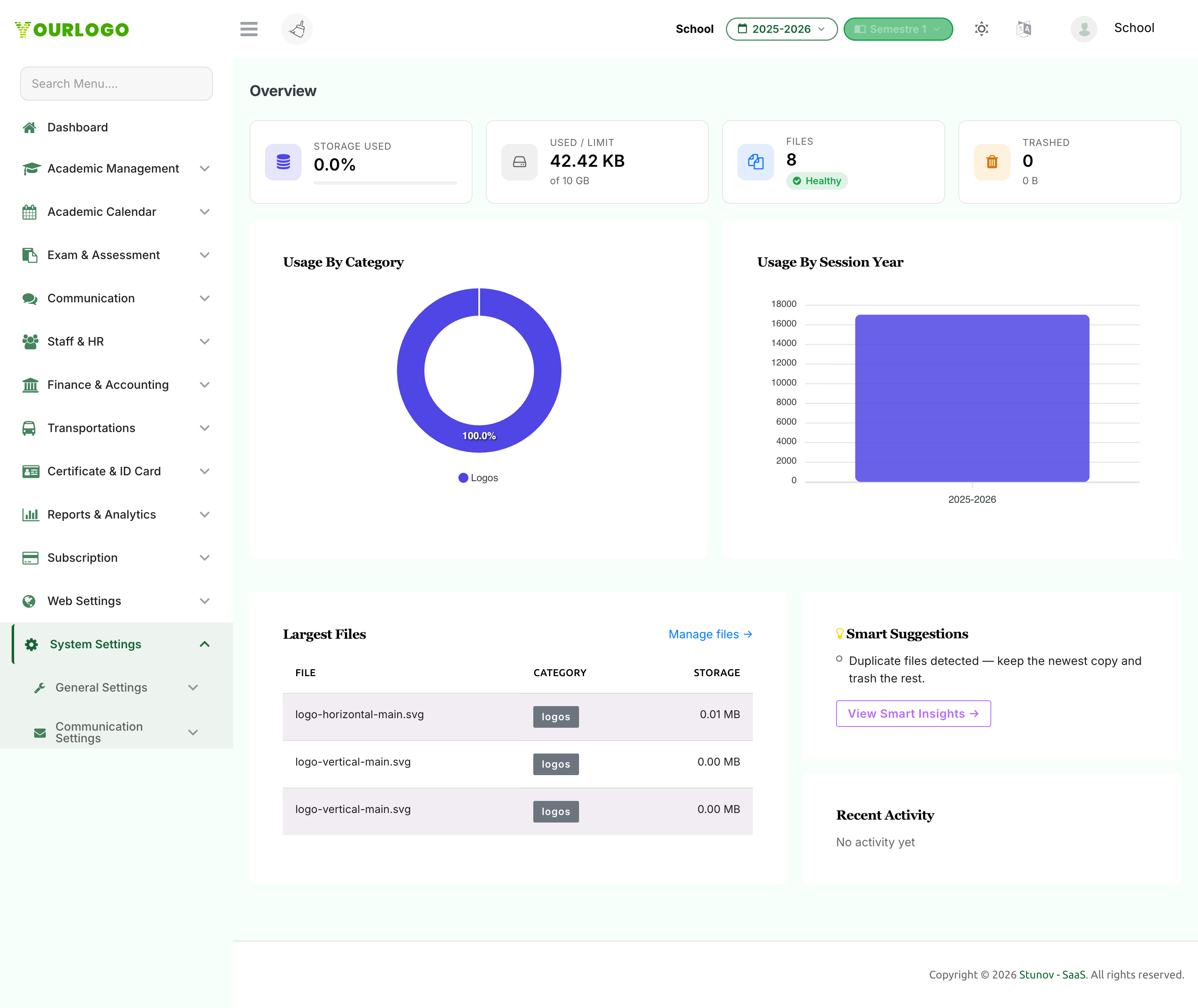
Storage Overview — usage breakdowns, largest files, and smart suggestions
What the Overview Shows
- Usage header strip — the shared quota figures (used percentage, used vs. limit, file count with a health badge, and trashed size). The health badge ranges from Healthy through Warning, Critical, and Full (or Unlimited for unlimited plans).
- Usage by category — a pie chart breaking storage down by file category (logos, attachments, and so on).
- Usage by session year — a chart showing how much storage each academic session year consumes.
- Largest files — the biggest files in your school, with a link to Manage files to act on them.
- Smart suggestions — quick, actionable cleanup recommendations (for example, removing duplicates), with a link to View Smart Insights.
- Recent activity — the latest storage actions (such as bulk trash), each with a timestamp and the amount of space freed or used.
Where to Go Next
The Overview is read-only — it points you to the pages where you take action:
- Use Manage files to browse, filter, and trash files → Files & Trash
- Use View Smart Insights to find cleanup opportunities → Smart Insights
- Use Storage Plans to add more space → Storage Plans
Related Pages
- Files & Trash — Browse and manage individual files
- Smart Insights — Find oversized, duplicate, orphan, and stale files
- Storage Plans — Review your quota and buy more storage