Smart Insights
The Smart Insights page helps you reclaim space by surfacing the files most worth removing. It analyses your storage and groups candidates into four categories, with recommendations at the top and a tabbed explorer below so you can review and clean up each type.
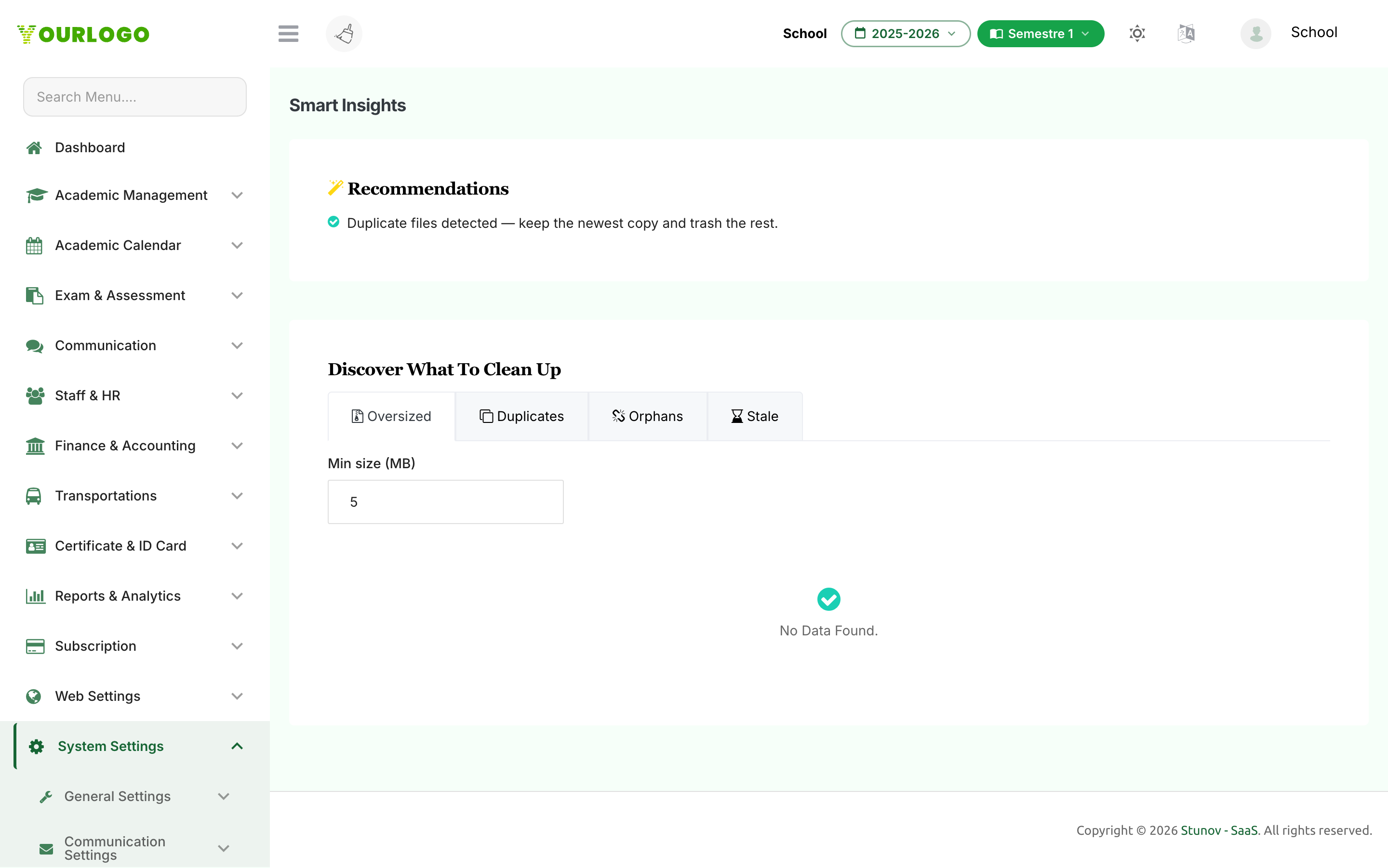
Smart Insights — discover what to clean up by category
The Four Insight Types
| Tab | What it finds |
|---|---|
| Oversized | Files larger than a size threshold you set (default 5 MB). |
| Duplicates | Files with identical content, grouped together so you can keep one and remove the rest. |
| Orphans | Files no longer linked to any record in the system. |
| Stale | Files not used in the last few session years (default 2). |
Review and Clean Up
1
Navigate to System Settings → Storage → Smart Insights
From the sidebar, open **System Settings → Storage** and click **Smart Insights**.
2
Read the recommendations
Review the suggestions at the top of the page for quick, high-value cleanup ideas.
3
Pick an insight tab
Choose **Oversized**, **Duplicates**, **Orphans**, or **Stale** to explore that category.
4
Adjust the threshold
On the **Oversized** tab, set the **Min size (MB)**. On the **Stale** tab, set how many **sessions back** counts as stale. Results refresh automatically.
5
Select and remove
Tick the files (or duplicate entries) you want to clear, then use the bulk action to move them to trash or delete them permanently — the same confirmations as on the Files & Trash page apply.
Trash first, when in doubt
Moving insight results to trash is reversible for the retention period, so it's the safer choice if you're not certain. Use permanent delete only when you're sure. See Files & Trash.
Related Pages
- Storage Overview — Usage summary and breakdowns
- Files & Trash — Browse, trash, restore, and purge files
- Storage Plans — Add more storage